Daymark Guide
Choose a topic and the instructions for your device.
Getting started and install
Web
Open your Daymark server in a modern browser and sign in. On a fresh device, choose an empty vault or sample data when offered. Your daily notebook is ready on Today. Use New task to capture something small, then tick it when finished. Notes provides a separate place for longer writing.
You can install the web app from your browser's installation menu. After the first successful load, the installed app can open offline. Keep a backup before clearing browser data: that browser profile holds your local vault. Sync connects other devices through your own server; it does not replace a backup.
Mobile
Download the Android APK from Daymark's release page. Android may ask you to allow installation from your browser or file manager. Updates signed with the same key preserve local data. Connect to your server in Settings for sync. Back up before uninstalling or clearing app data.
You can also install the web app from your phone's browser menu; it works offline.
**One-time switch from debug to release:** sync or back up first, uninstall the debug-signed app, install the signed APK, then sign in again. Uninstalling deletes device-only data. The new signing key requires this: Android refuses to update an app signed with a different key.
### Building signed Android releases Create the release key once, outside the repository: ```sh keytool -genkeypair -v -keystore <path outside repo> -alias daymark -keyalg RSA -keysize 4096 -validity 36500 ``` Keep the keystore outside the repository. Back up the key and passwords securely in separate locations; losing them prevents future updates from installing over the app.
Supply `DAYMARK_KEYSTORE`, `DAYMARK_KEYSTORE_PASSWORD`, `DAYMARK_KEY_ALIAS`, `DAYMARK_KEY_PASSWORD` through environment variables, or create git-ignored `mobile/android/keystore.properties`: ```properties storeFile=D:/private/daymark-release.jks storePassword=<store password> keyAlias=daymark keyPassword=<key password> ``` Use an absolute path with forward slashes; Java properties escaping applies. Each nonempty environment value overrides its file property. Keep passwords private; never commit signing inputs.
Run `npm run android:build -- --release`; add `--test` to run `testReleaseUnitTest` before `assembleRelease`. Missing signing inputs fail without a debug-key fallback. The signed output is `mobile/android/app/build/outputs/apk/release/app-release.apk`. Publish it as `daymark-X.Y.Z.apk` with `SHA256SUMS`. Without `--release`, builds remain debug builds requiring no release key.
Today and carrying forward
Web
Today shows the notebook for the selected date. Use the day arrows to browse and return to Today when ready. Tasks are grouped into sections. Tick a task to finish it, or open its title to inspect details and history. The task menu offers more actions, including moving a task and recording when it was really completed.
Unfinished tasks carry forward according to their status settings. Their age and history remain visible so repeatedly postponed work is easier to notice. Finishing a later copy closes earlier copies as Done later. Those closed copies do not count as open work. Park ideas in Backlog when they should wait without aging or daily warnings.
In Settings → Old-task warnings, Task aging counts offers Weekdays (Mon to Fri), Weekends (Sat and Sun) or All week (the default). Only those days add to task age. Existing ages update when you change the choice, and warnings stay visible on days that do not count. This choice syncs between devices and does not change carry-forward.
Mobile
Open the Today tab to see your daily sections and tasks. Tap a checkbox to finish a task, its title for details, or its menu for additional actions. Use the date controls to view another day. The plus button opens New task, where you can choose a date and section before saving.
When a new day begins, eligible unfinished work carries forward with its original history and age. Earlier copies remain useful as a record. Finishing the later copy closes the earlier ones as Done later. A warning can highlight work that has stayed open too long. Use Backlog for undated ideas that should not appear in those counts or warnings.
Open Settings → Old-task warnings → Task aging counts to choose weekdays, weekends or all week. All week is the default. The choice syncs, updates existing ages and leaves warnings visible on days that do not count. Carry-forward stays the same.
Sections, statuses and moving tasks
Web
Sections organise tasks within a day. Set your usual section names in Settings, or add a section to the current day. A task's status controls how unfinished work behaves at rollover; configure those rules in Settings under Statuses. Checking a task marks it done without requiring you to change its section.
To reorganise a task, open its menu and choose Move to section. Pick an existing section or enter a new name and press Enter. Matching names ignore case and extra surrounding spaces. The task moves to the end of that section and keeps its identity and history. Undo is offered. Move to date reschedules work; Move to backlog parks an open task outside the calendar.
Mobile
Tap a task's menu to open its actions. Move to section lists sections from that task's day, with the current section disabled. Tap another section, or type a name under New section and use Move. The task keeps its details and history. An Undo action appears after the move; use it promptly, before making further edits.
Use Move to date when the task belongs on another day. Use Move to backlog for unfinished work that should wait without a date. Status options come from Settings under Statuses and can affect whether unfinished tasks carry forward. A completed task can change section, while a historical closed copy cannot be moved again through this action.
Backlog
Web
Backlog holds ideas without a date. They stay out of Today, the calendar, daily counts and old-task warnings until you pick them. Open Backlog from the side menu, or choose the Backlog target in New task. Give the idea a title and, optionally, a description and category. Category suggestions include existing labels and section names.
Use Pick a day when you are ready. Choose today or a future date. A matching section is reused; otherwise Daymark creates a section named after the category. Unlabelled ideas use the default section. Edit, reorder within a category, or delete ideas with Undo. Move to backlog in an open task's menu returns dated work to this waiting area.
Mobile
Tap Backlog in the bottom bar to see undated ideas grouped by category. You can add one there or tap plus, switch New task to Backlog, and enter a title with an optional category. These ideas do not age, carry forward or appear in daily progress. Keep immediate work on Today and later possibilities here.
When an idea becomes actionable, use its Pick a day control and choose today or a future day. Its category determines the destination section, creating that section when necessary. You can edit, reorder or delete an idea from its row. To park an existing open task, use Move to backlog from the task's menu. Done tasks cannot be parked this way.
Habits
Web
Habits track recurring routines separately from tasks. Open the Habits bar on Today to view your routines, mark a day's completion and inspect streaks. Add or edit habits through the habit controls. Choose a name that describes a repeatable action so a daily tick has a clear meaning.
Habits do not need to be recreated as daily tasks. Their completion history stays with the habit rather than a copied checklist item. A missed-habit warning can help you spot a routine that has slipped. If you sync devices, reconnect to exchange their habit changes. Backups include habit data; export one before clearing a device or making large changes to your vault.
In Settings → Old-task warnings, Habit warnings count offers Weekdays (Mon to Fri), Weekends (Sat and Sun) or All week (the default). Only those days add missed days; other days do not break a run of misses. Warnings stay visible every day. Changing the choice updates existing missed-day counts and syncs between devices. Task aging has its own choice; habit streaks are unchanged.
Mobile
On Today, open the Habits bar to see your daily routines. Tap a habit's completion control to record that day. Use the habit controls to create or edit routines, and check the streak display when reviewing progress. Habits are separate from the tasks in your daily sections, so you do not need a repeated task for each routine.
The Android app also supports a habits home-screen widget. Add it using Android's widget picker and keep the app installed for it to work. Widget availability and appearance depend on your launcher. Connect sync if you want habit changes on other devices, and keep regular backups of your vault, including habits.
Open Settings → Old-task warnings → Habit warnings count to choose weekdays, weekends or all week (the default). This synced choice updates missed-day counts without changing streaks. Warnings still show on days that do not count. Task aging is a separate choice.
Calendar
Web
Calendar helps you review past work and plan future days. Use month navigation to find a date, then open a day to view its notebook. The month grid summarises activity, while the week view lists tasks in readable day rows. Existing controls switch between these views without changing the underlying notes.
Create future work by choosing a date in New task or by moving an existing task to a date. On desktop, supported drag actions can also reschedule tasks. Review the destination after a move and use Undo if needed. Backlog ideas do not appear on Calendar until picked into a day; they have no scheduled date to display.
Mobile
Tap Calendar in the bottom bar to browse your days. Use the month arrows to navigate and tap a day to open its notebook. Switch to the week view when you want the tasks listed by day instead of a compact month grid. The layout stacks day rows to keep their titles readable on a phone.
To schedule work, tap plus and choose its date. An existing task can be rescheduled through its Move to date action; there is no need to drag precisely on a small screen. Backlog ideas stay outside the calendar until you choose Pick a day. Calendar is a view of your daily notebooks, not a separate copy of their data.
Notes
Web
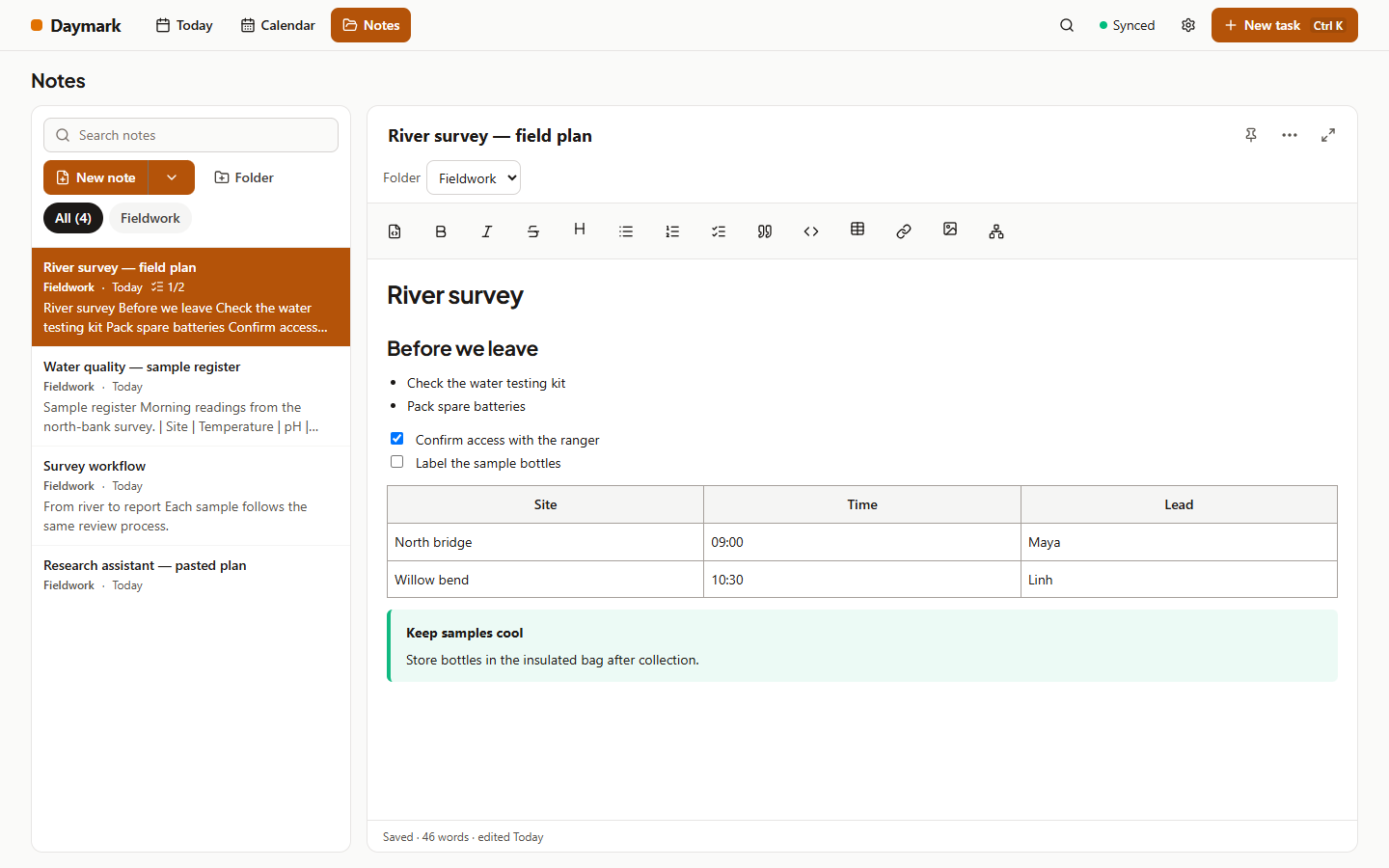
The editor supports headings, lists, checkboxes, tables and code; content stays Markdown. Paste pictures, use Mermaid code blocks for diagrams, and type double brackets to link notes. Focus mode hides navigation.
Notes has one column: Search, New note, New folder, List | Graph, then a folder tree. Pinned notes sit on top. Search filters the tree and dims an open note that does not match. The selected folder is where new notes and folders land. Drag notes into folders or the Move to top level strip. Arrow keys, Home, End and Enter navigate; Shift+F10 opens folder actions. Deleting a folder moves its notes up.
Minimize notes column leaves shortcuts; below 1100 pixels, Notes opens a drawer. The Related panel suggests notes: Link adds a link, Not related hides a suggestion; Restore under Hidden suggestions brings it back. Graph shows connections with folder and tag filters.
Open Note templates beside New note, choose Handwritten note, then lined or grid paper (blank is available too). Pen input enables writing tools: pens, highlighter, eraser, Undo and Redo. Add page extends the notebook. Devices without pen input show pages read only. Handwriting search is title only. ZIP and JSON backups include ink; Markdown export contains a placeholder.
On a typed note, turn on Highlighter and choose a colour, then drag the pen across words. Highlights stay with the words through edits and sync. Turn it off for ordinary pen behaviour; mouse and finger drags never highlight.
Mobile
Tap Notes in the bottom bar. Search and the folder tree open first. Select a note to edit; Back returns to the column. Formatting supports headings, lists, checkboxes and Markdown. Pictures and Mermaid diagrams work too; double-bracket links offer suggestions. Include pictures in backups.
Folders nest. Tap a folder to expand it. Its actions create, rename, move or delete folders; deletion moves notes up. Search filters the tree. Move to folder files an open note. The Related button opens suggestions: Link adds a link, Not related hides a pair; Restore under Hidden suggestions brings it back. Graph needs a tablet or wider screen.
For a handwritten note, open Note templates beside New note and choose Handwritten note, then lined or grid paper (blank is also available). An S Pen enables writing. Choose Pen, Highlighter or Eraser; eraser options offer area or whole-stroke removal. Undo and Redo recover stroke edits. Use Add page, Previous page and Next page. Pen pressure changes line width; palms and fingers do not draw. Finger scrolling on writable pages has no momentum; pinch zoom is off there. Without pen input, pages are read only. Handwriting search is title only; ink syncs and is included in ZIP and JSON backups.
For typed notes, tap Highlighter, choose a colour and drag the S Pen across words. Highlights follow later edits and sync to other devices. Turn the tool off to select text normally. Update every device to Daymark 1.11 for highlight colours.
Search
Web
Use Search in the side menu to find work across your vault. The keyboard shortcuts Ctrl or Command plus Shift and F, or slash when you are not typing in a field, open the same search. Enter words from a title or note and inspect the labelled results before choosing one.
Results can point to a daily task, a note or an active backlog idea. Backlog results are labelled Backlog and open that page. Picked or deleted backlog items are excluded. Choosing a dated result takes you to its day so you can see the surrounding context. Search works with your locally stored data; sync first when you need changes made on another device.
Mobile
Open Search from the app's available search control and enter a few distinctive words. Search covers local daily work, notes and active backlog ideas. Read each result's label to distinguish a dated task from a note or an undated idea. Tap a result to open the relevant day, note or Backlog page.
If something written on another device is missing, reconnect and let sync finish before searching again. Search can only show the data currently available on this device. Picked and deleted backlog items are hidden from backlog results. Close the search dialog to return to the screen you were using; searching does not move or change any task.
Sync and the server
Web
Sign in to your Daymark server in the browser. The browser automatically syncs with the server that serves the app; there is no server-address field to configure. Open Settings and choose Sync to inspect status or request Sync now. Each browser profile keeps a local vault. A web build hosted on another origin is local-only; use backups to transfer its data.
Edits remain available offline and are exchanged after reconnection. Check the sync status before switching devices when you need the latest work immediately. Sync includes daily documents, notes, settings, habits and the backlog on compatible versions, along with the note folder list (including empty folders) and the suggestions you marked Not related. A device on an older version shows a nested folder such as Tech/Java as one flat folder name and keeps every note. Older servers may not support newer records. Keep backups independently: sync exchanges changes, including deletions, and is not a historical backup service. Server administration and device management belong to your self-hosted installation.
Mobile
In the Android app, open Settings, then Sync, and enter your server address and account details. Choose Connect and sync. In a phone browser, open the server itself and sign in: browser sync uses that server automatically, with no address field. Use the sync controls to inspect status or request an exchange. A browser installation and the Android app have separate local storage and each needs its own sign-in if you use both.
You can keep editing without a network connection. Reconnect later and allow sync to finish before relying on another device's view. Compatible versions exchange tasks, notes, folders, habits, settings and backlog ideas, plus the Not related choices that hide Related suggestions. An older version shows a nested folder as one flat name but never loses a note. Background photos remain device-specific. Make regular backups as well: syncing a deletion can remove data on another device, so sync alone cannot replace a saved backup.
Backups
Web
Open Settings and choose Backup & restore before making major changes or clearing browser storage. Back up now downloads a ZIP; Advanced offers Technical backup (.json) and Download .json. Save the file somewhere separate from the browser profile. Backups include your vault data, including habits and the backlog. Markdown export provides daily files and notes, with a Backlog.md list for undated ideas; nested note folders appear as real directories under Notes, so a note in Tech/Java is exported inside Daymark/Notes/Tech/Java.
To restore, use Choose a backup file in Backup & restore and select the saved ZIP or JSON. Read any confirmation carefully, particularly when connected to sync, because restored changes can reach other devices. Older backups may omit features added later. Keep more than one dated backup so an unnoticed mistake does not replace your only good copy. Test your backup routine before you need it urgently.
Mobile
In Settings, open Backup & restore and use Back up now for a ZIP. For JSON, open Advanced and use Download .json under Technical backup. In the Android app, exports use the system sharing flow; save or share the file to a location you can find again. In a phone browser, the file is usually downloaded through that browser. Confirm that the file exists outside the app before clearing storage or uninstalling.
Restore with Choose a backup file in Backup & restore and a previously saved ZIP or JSON. Read the confirmation, especially if sync is connected. A backup can contain notes, daily tasks, habits and backlog items. Keep dated copies in more than one safe location. A synced phone is convenient, but it is not a substitute for a backup you can restore independently.
Appearance
Web
Open Settings using the icon next to Search in the desktop side menu Title part, then choose Appearance to adjust the theme, text size and colours. Changes preview immediately through the existing settings controls. Choose colours with enough contrast to keep labels and tasks readable. The header colours also apply to the desktop side menu, so inspect that menu when changing them.
Menu side selects Left or Right for the desktop rail. Use Minimize menu at the top of the rail to keep just the icons and give your content more room. Hover over or focus an icon to see its label; use Expand menu to restore the full menu. This choice is remembered on this device and does not sync to your other devices. Notes focus mode hides the rail temporarily, then restores its previous size and side. Background photos are selected on this device; use dim and blur controls to make text comfortable to read over them. Check both light and dark appearances after a substantial change. Synced preferences can follow you, while the photo files remain local to each device.
Mobile
Tap the Settings gear in the top header, then Appearance, to choose a light or dark theme, text size, colours and a background photo. Settings preview as you adjust them. Use a readable text size and check task titles, menus and buttons after changing colours. Dim or blur a busy photo so the content stays clear.
Phones use the bottom tab bar, so Menu side affects the desktop layout when that preference is used on a wider screen. It does not turn the phone tabs into a side menu. Appearance preferences can sync, but background photo files are device-specific. Pick photos separately on each device and keep a copy of any image you want to reuse later.
Widgets (Android)
Web
Home-screen widgets are provided by the Android app. A desktop browser or installed web app does not expose the native Android widgets. If you want tasks or habits visible on your phone's home screen, install the Android APK, open it, and connect the same sync server used by your browser.
Task widgets follow your Needs attention after, Urgent after, aging warnings switch and counting days settings. The Android task and habits widgets use the app's local data. Let the app sync when checking something recently changed on the desktop. Widget settings control their appearance and content where supported. The backlog has no widget: pick an idea into a day before expecting it among daily tasks. Keep the Android app installed and its data intact for its widgets to function.
Mobile
Install and open the Android app before adding a widget. Long-press an empty area of your home screen, open your launcher's widget picker, and find Daymark. Add the task or habits widget, then use the available widget settings to choose the supported display options. Exact placement and resizing controls depend on the launcher.
Task widgets use your Needs attention after and Urgent after settings, the aging warnings switch and counting days. Widgets read the app's local data and can queue supported actions for the app. Open Daymark and let sync finish when you need recent changes from another device. A phone browser installation does not provide these native widgets. Backlog ideas have no widget; pick them into a day to make them daily work. Removing app data or uninstalling also affects the widgets.
Shortcuts and gestures
Web
Use Ctrl or Command plus K to open New task. Ctrl or Command plus Shift and F opens Search, and slash opens it when you are not typing in a field. The shortcut help lists the available combinations. Press g, then b, to open Backlog through the same navigation shortcut family as the other main pages.
Keyboard navigation follows the focused control. Tab moves between controls, Enter activates a focused button, and Escape closes supported dialogs. Shortcuts avoid interrupting normal text entry in editors and fields. On the website, screenshot links open a viewer: use left and right arrows to browse and Escape to close it. Focus returns to the screenshot you opened.
In Notes, the navigation tree, the Related panel and the graph are reachable by keyboard: in the tree, the arrow keys move between folders and notes, Home and End jump to the first and last row, and Enter opens a note or toggles a folder. Shift+F10 or the Menu key opens a folder's actions. In the graph, choose List view for every note and connection as buttons, with Link and Not related for each suggestion; long lists are paged with Previous and Next buttons. The graph canvas also supports the mouse wheel for zoom and drag to pan.
Mobile
Use the bottom bar to switch between Today, Calendar, Backlog and Notes. The centre plus button opens New task. Open Settings with the gear icon in the top header. Tap task titles for details and the task menu for actions such as Move to section or Move to backlog. Use the visible controls when an action needs a precise destination or date.
Android Back closes the current dialog or editor before leaving a page, and returns from Backlog to Today. Browser navigation can differ from the native app. On the website, tap a screenshot to enlarge it, swipe horizontally to browse, and use Close to return. Native pinch zoom remains available. A connected keyboard can use the web shortcuts where the current input context permits them.
Folder and note rows, Related suggestions and graph connections use buttons rather than gestures, so they work with touch and with a connected keyboard. Pinch zooms the graph on a tablet and a tap selects a note; List view offers the same actions as plain buttons.